Self Registrations
Open Employee Requests > Self Registrations. The screen title is Self Registration Requests and lists employees awaiting account activation.
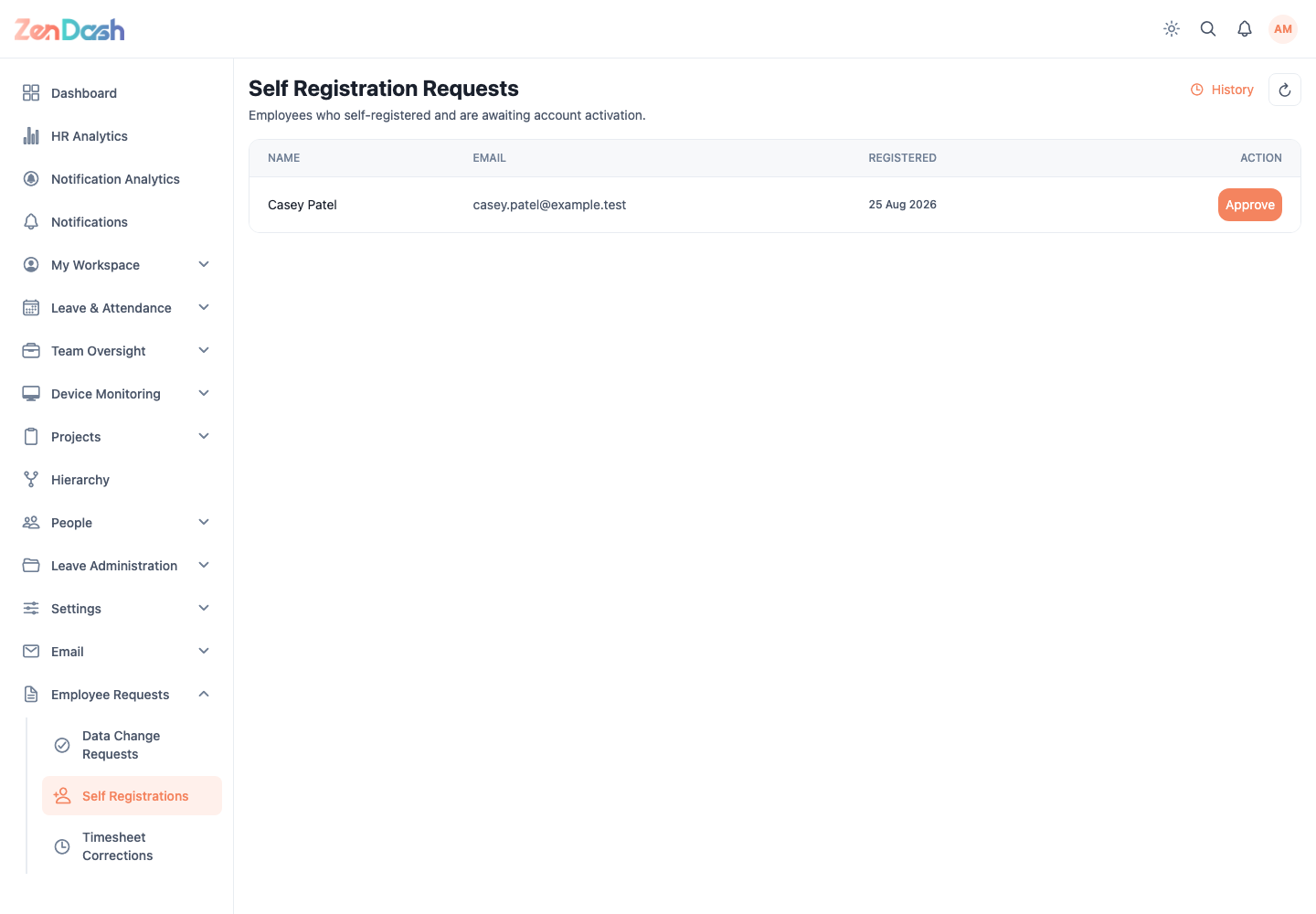
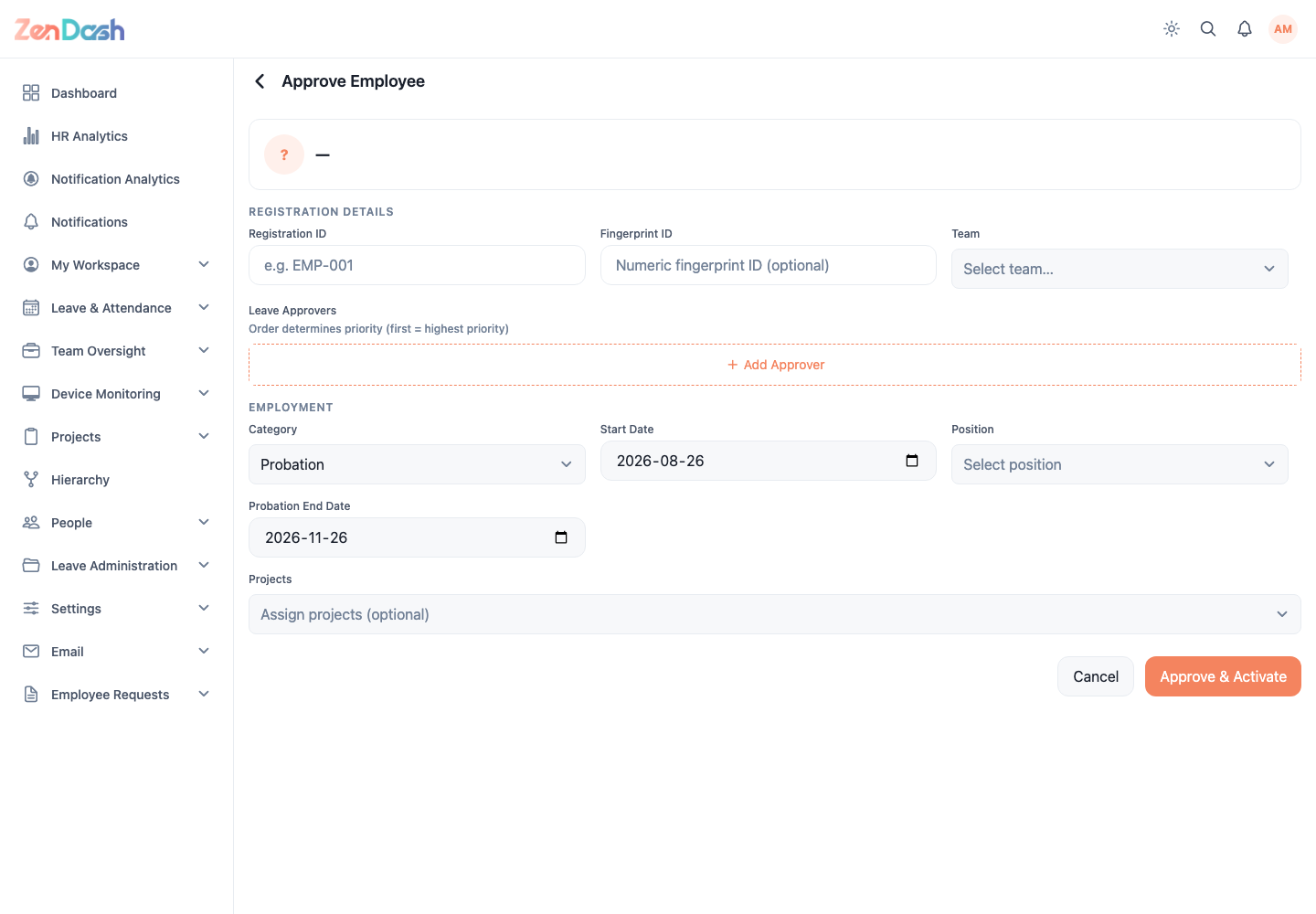
Select Approve to open Approve Employee. Review the submitted identity, then complete the needed setup:
- optional Registration ID and Fingerprint ID;
- Team;
- ordered Leave Approvers;
- employment Category and Start Date;
- Position;
- probation or contract dates when applicable; and
- optional Projects.
Select Approve & Activate to create the active employee account, or Cancel to return without approval.
Select History to open Registration History, which shows pending and approved records and, for approvals, the processor and date.
warning
Approval activates access. Verify the email, employment category, approvers, and organizational assignments before confirming.